> ## Documentation Index
> Fetch the complete documentation index at: https://thenile.dev/docs/llms.txt
> Use this file to discover all available pages before exploring further.
# Connecting to Postgres using PSQL
This guide will walk you through the steps to connect to Nile using PSQL.
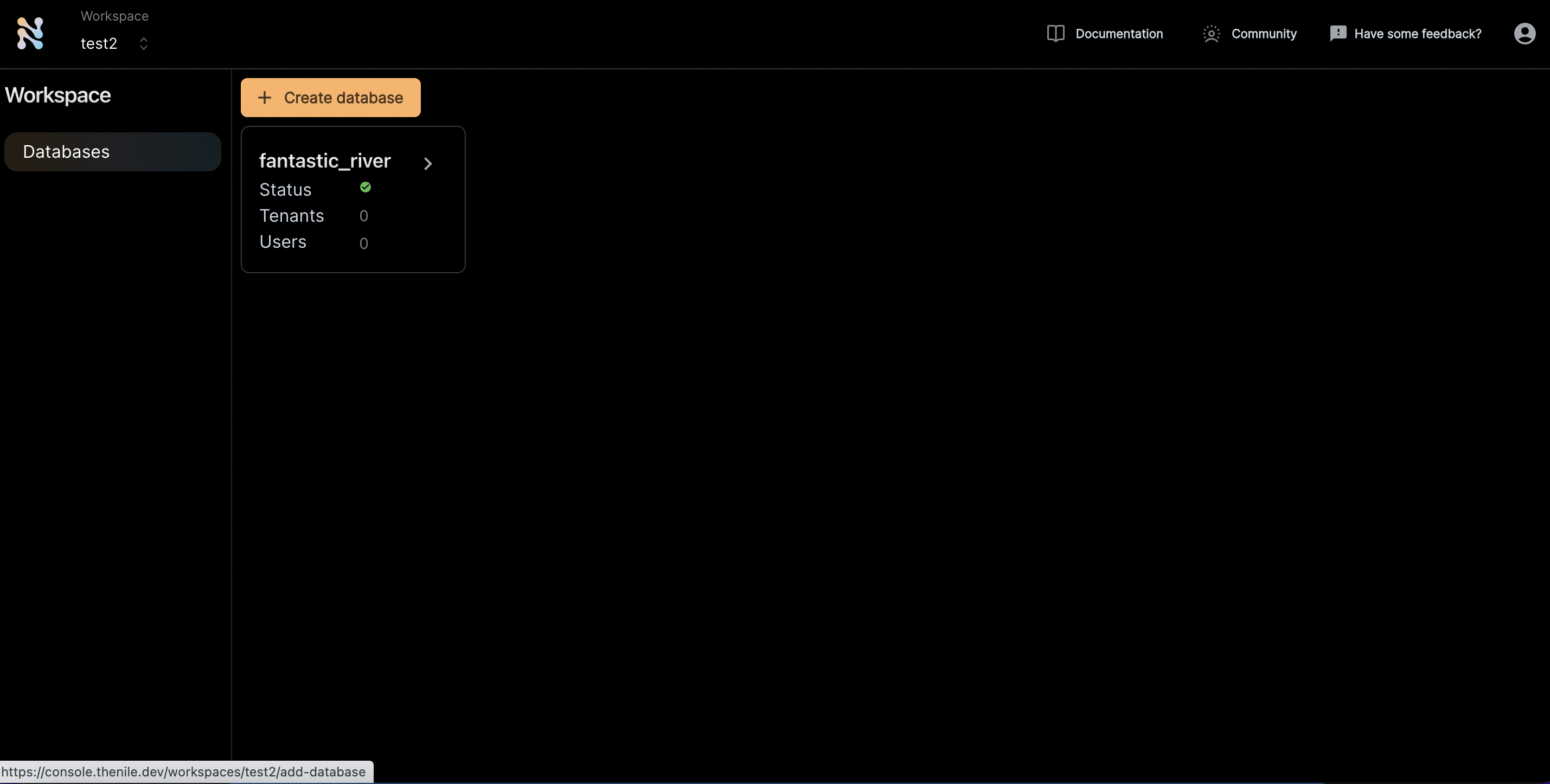
1. Create a Nile's Postgres database through the UI or use one of your existing databases to follow along.
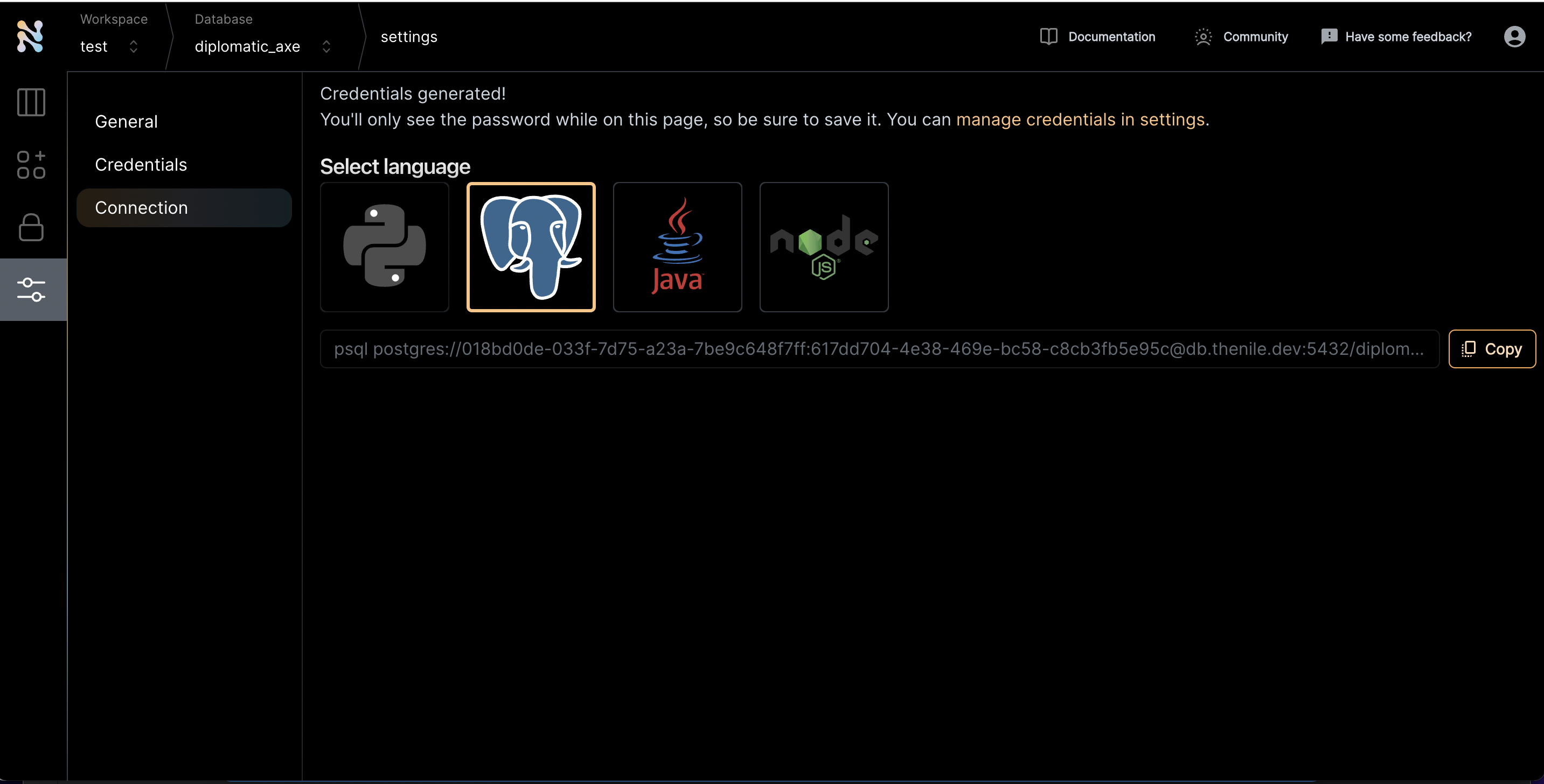
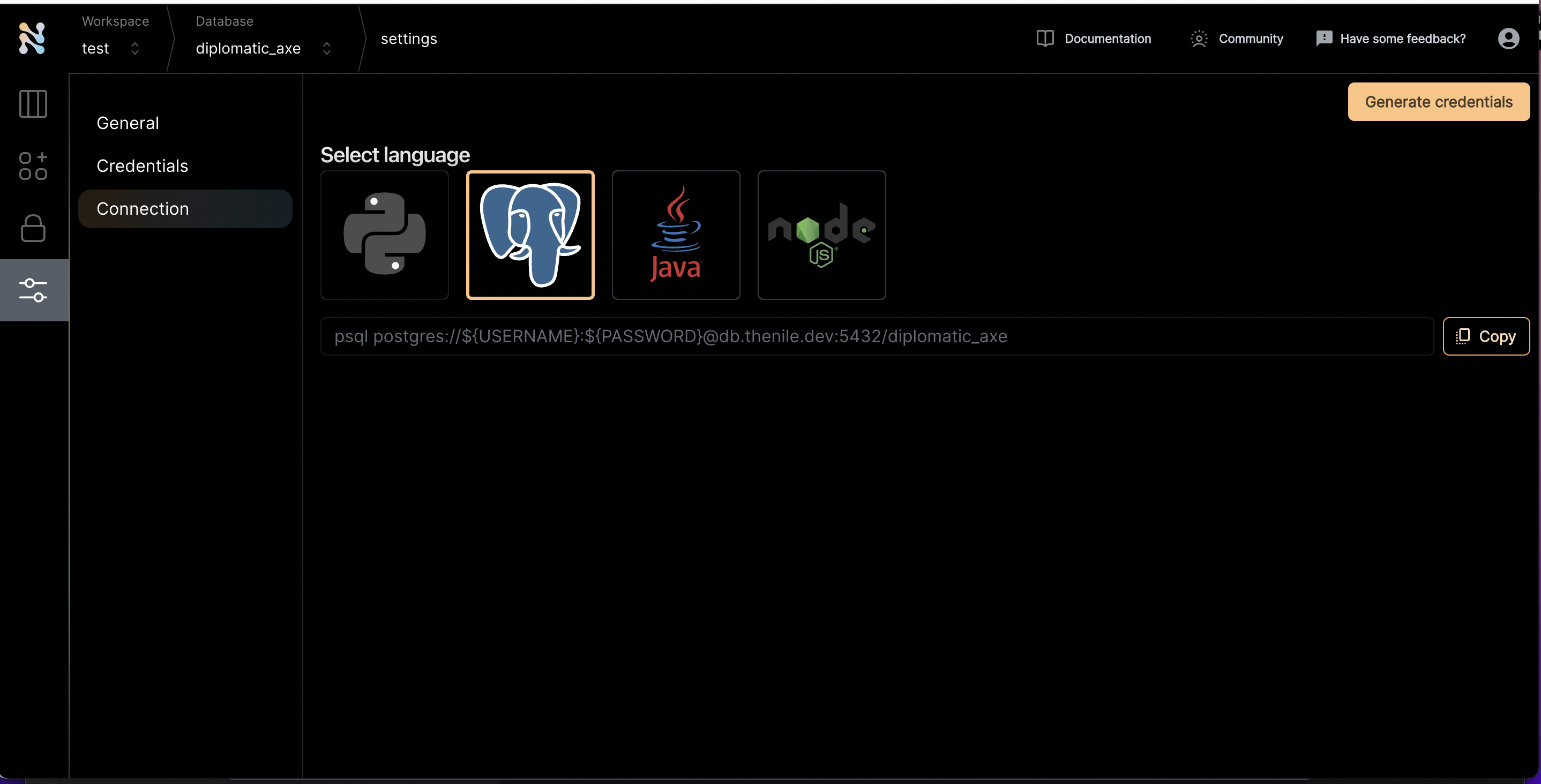 2. Once you are inside a specific database, click on the settings tab on the left and navigate to the connections screen
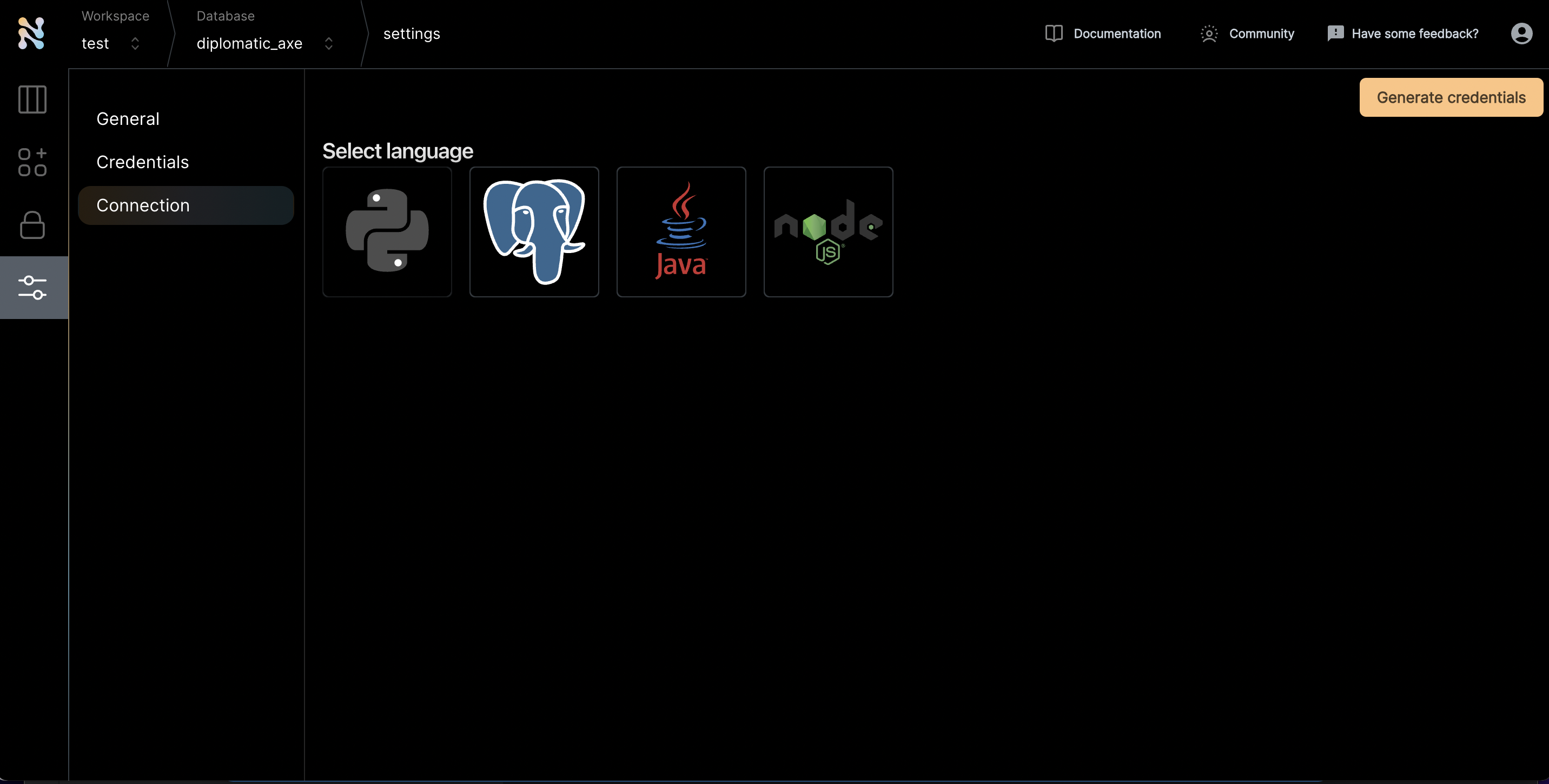
 3. Click on the Postgres icon to get the connection string
 4. Click "Generate credentials". Use this if you really want to simplify the access. If not, you can replace the username and password manually and use that through commandline.
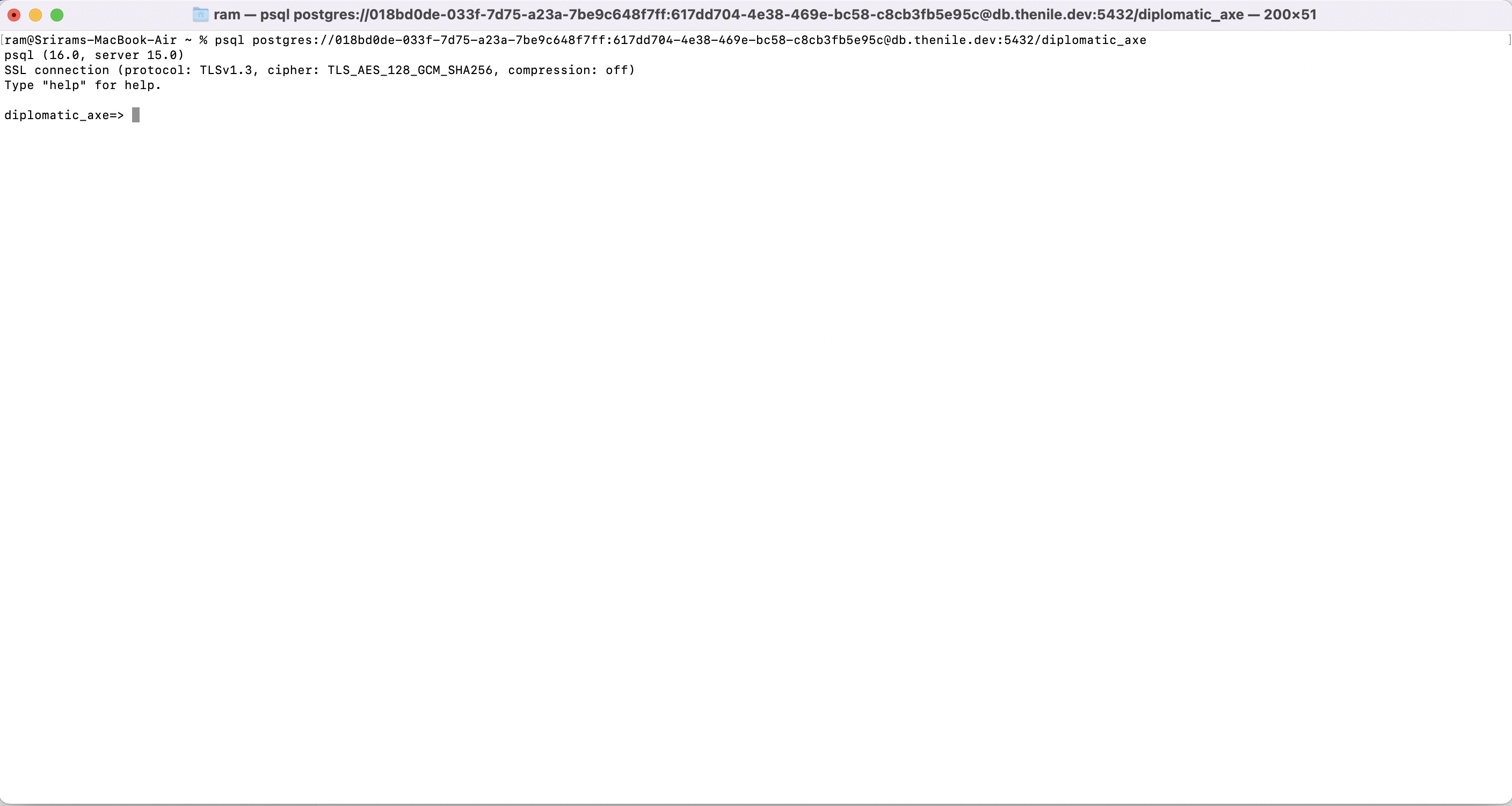
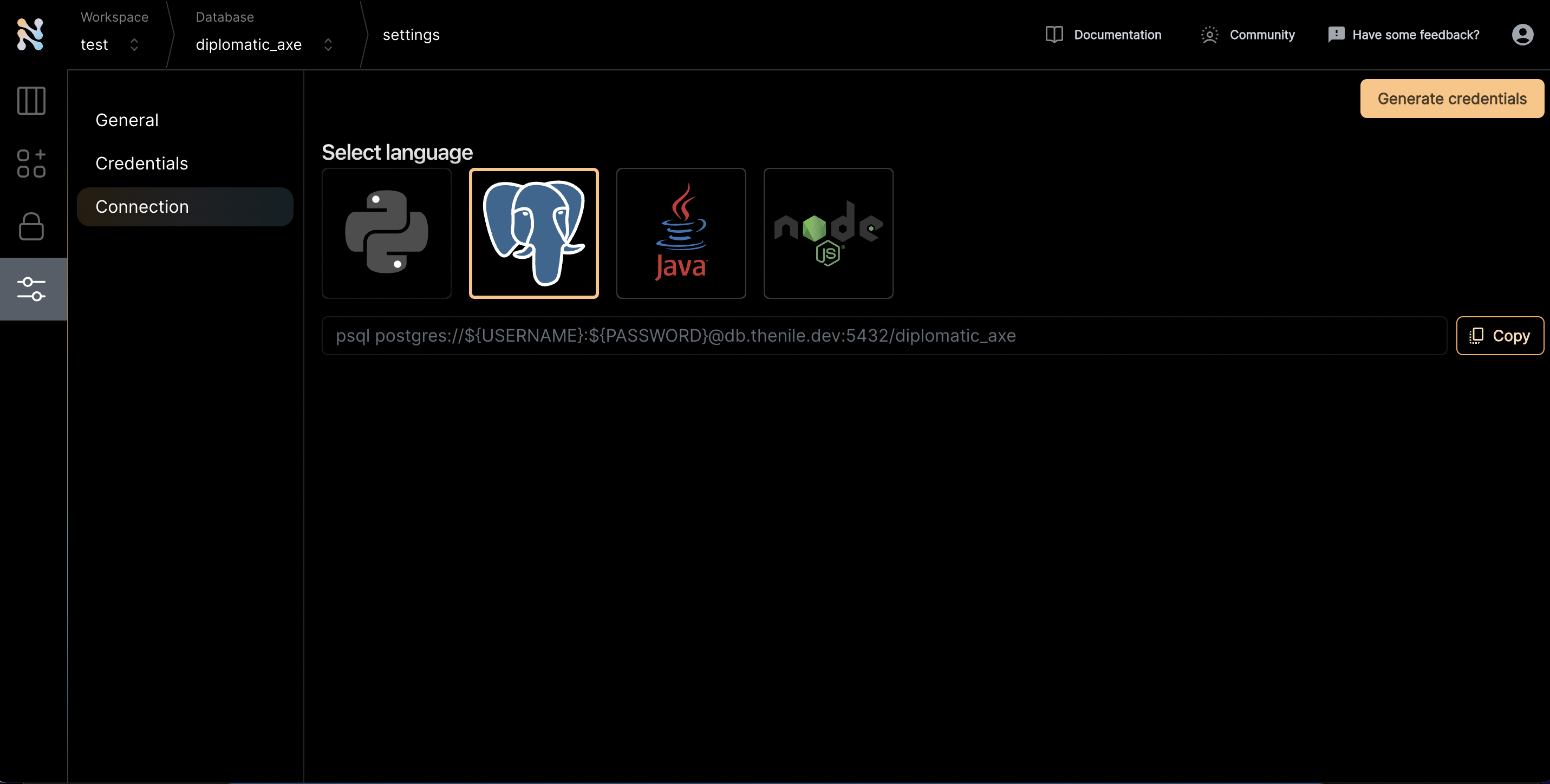 5. Copy the connection string and run it on the command line.
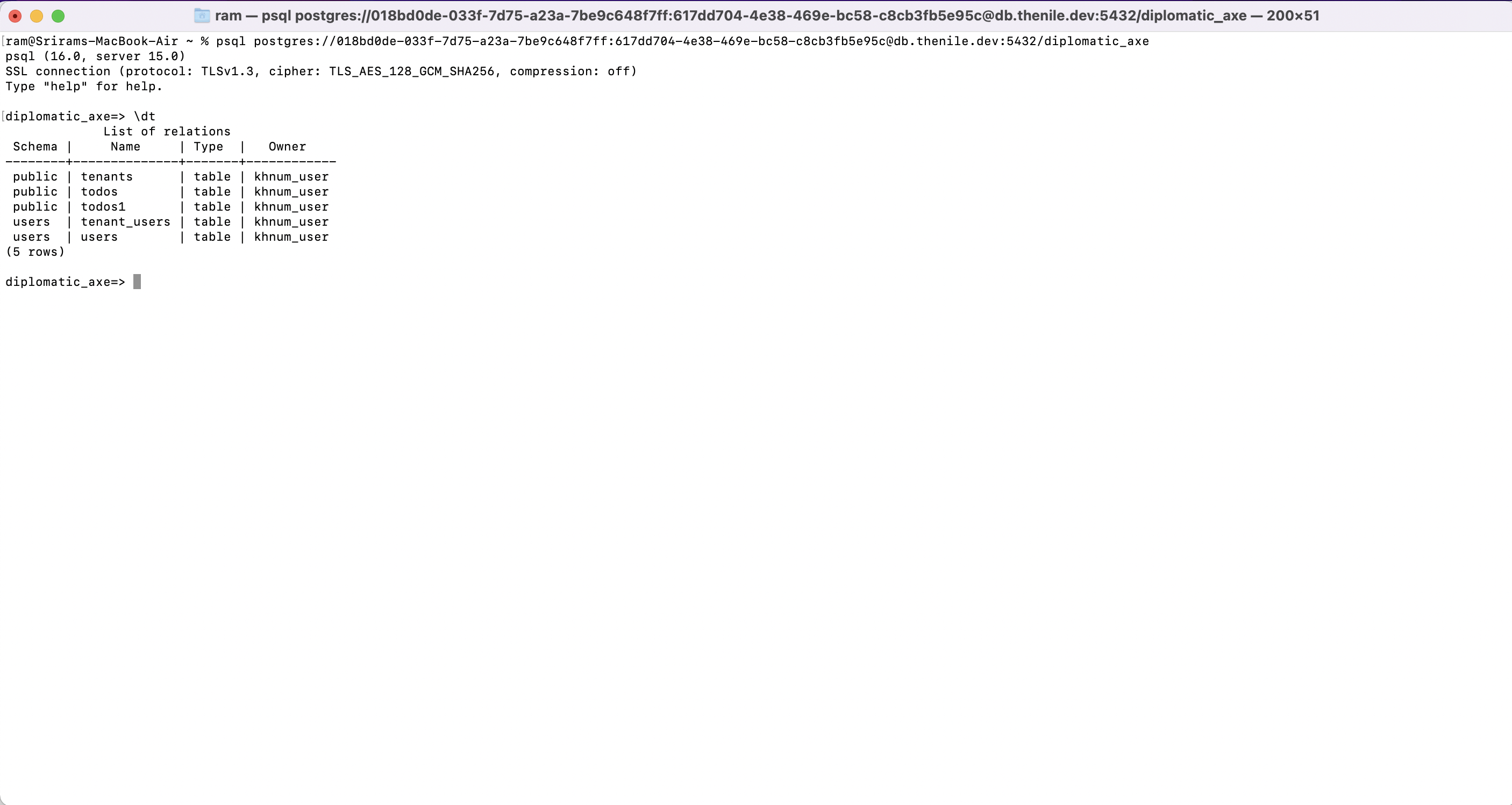
 6. You can now use the full power of psql with Nile. You can take a look at all the tables and schemas using \dt
 7. Execute any queries to interact with the tables. For example, if you want to see the rows in tenants table, execute a select query on it
 8. Have fun using PSQL!