> ## Documentation Index
> Fetch the complete documentation index at: https://thenile.dev/docs/llms.txt
> Use this file to discover all available pages before exploring further.
# Vercel
## Using Vercel and Nile together
[Vercel](https://vercel.com) provides the developer tools and cloud infrastructure to build, scale, and secure high performance web applications.
Nile's NextJS examples such as the [AI-native Todo App](https://www.thenile.dev/templates/AI-Native%20multi-tenant%20SaaS%20with%20Nile%20and%20NextJS),
[KnowledgeAI](https://www.thenile.dev/templates/KnowledgeAI%20-%20PDF%20search%20assistant%20for%20your%20organization)
and [Code Assistant](https://www.thenile.dev/templates/Autonomous%20Code%20Assistant%20-%20Code%20more%2C%20type%20less) are all written in NextJS and deployed on Vercel.
In this guide we'll walk you through using Vercel's dashboard to create a NextJS project integrated with Nile database. We'll use Nile's NextJS quickstart as an example.
If you don't already have a Vercel account, go ahead and create one [here](https://vercel.com/).
### Create a database
1. Login to your Vercel workspace and click on the **storage** tab and then on **Create Database**
2. From the **Marketplace Database Providers** select **Nile Database** and click on **continue**.
3. Choose a region and a price tier (price tier can be changed later, the region is fixed).
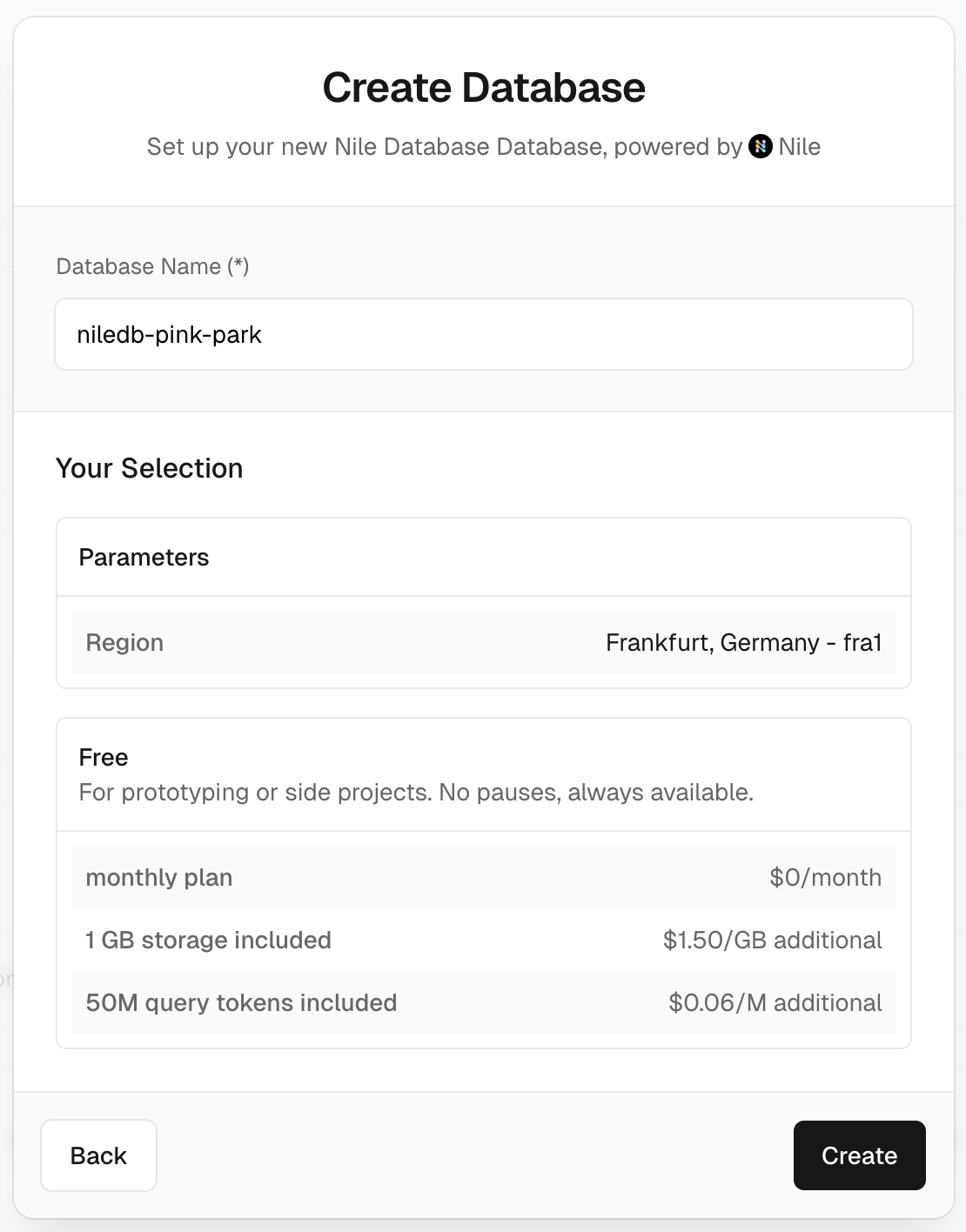 4. Edit the auto-generated database name, if you wish, and click on **create**.
Thats it. You have a database. You should see environment variables with the database connection info as well as other example snippets.
4. Edit the auto-generated database name, if you wish, and click on **create**.
Thats it. You have a database. You should see environment variables with the database connection info as well as other example snippets.
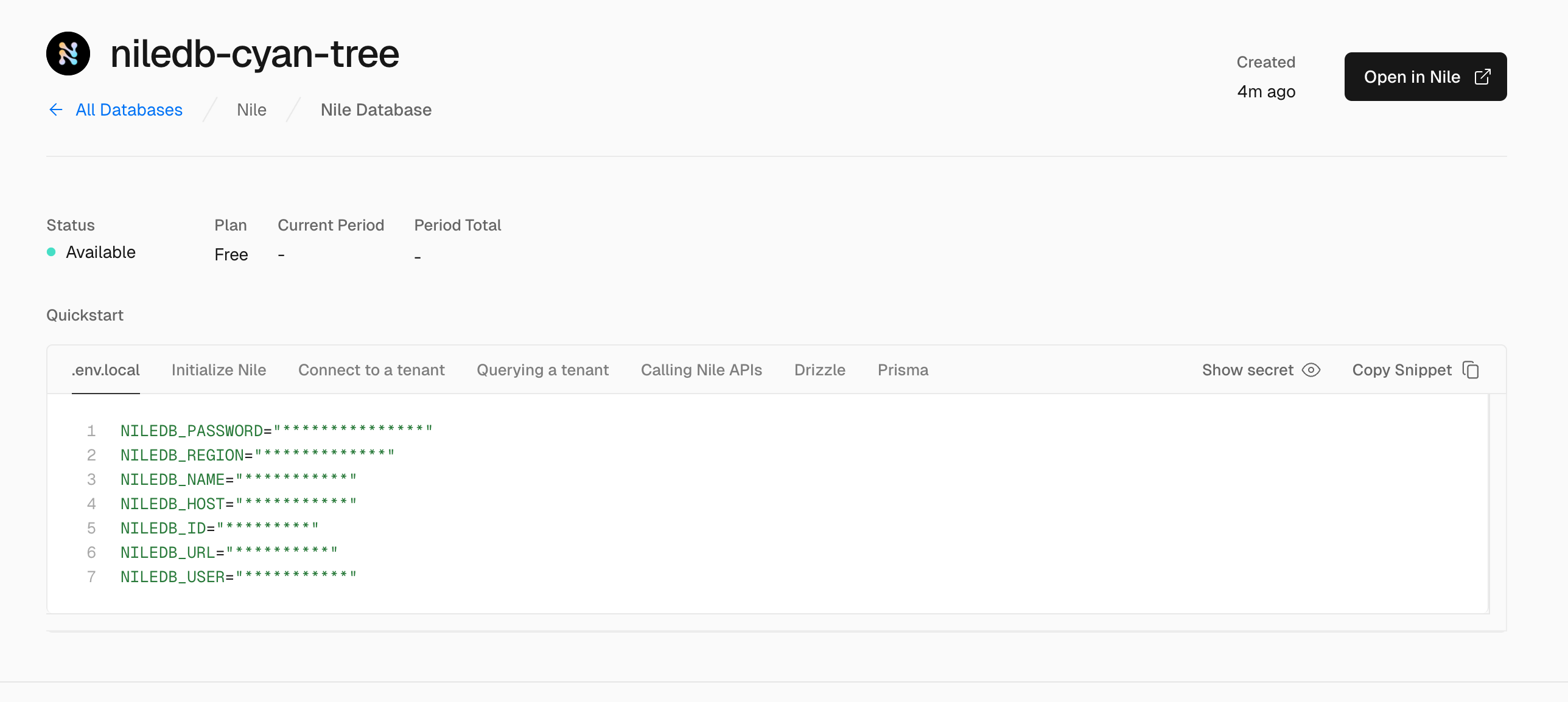 We are planning to use this database for an example todo list application. We need a table for storing all these todos.
To create the table, click on **Open in Nile**. This will open a new tab with a query editor connected to your brand new database.
Copy-paste this snippet and click **Run**:
```sql theme={null}
CREATE TABLE todos (
id uuid DEFAULT (gen_random_uuid()),
tenant_id uuid,
title varchar(256),
estimate varchar(256),
embedding vector(768), -- must match the embedding model dimension
complete boolean);
```
You'll see the new table in the left side menu, as well as the built-in tenants table.
### Deploying Nile's NextJS Quickstart
1. Start by forking [Nile's github repo](https://github.com/niledatabase/niledatabase). You can do this by clicking the "Fork" button in the top right corner of the screen.
2. Back in Vercel's dashboard, click on **Add New\*** to create a new project. The "Import project" section will show the repository you just cloned - click on **Import**.
3. You'll be redirected to the "Configure project" screen. There are few things we need to change:
* **Project name**: Give your project a meaningful name. For example `nile-vercel-nextjs`.
* **Root Directory**: Set the root directory to `/examples/quickstart/nextjs`
4. Click "Deploy".
You can wait for the deployment to complete or you can cancel the deployment immediately since we still need to connect a database.
### Connecting Nile Database to a Project
1. In the project dashboard, select the **storage** tab. You'll see the database that you created in a previous step. Click on **connect**.
You can use the same database for all environments, or use separate databases for development and production. You can create additional Nile databases from this screen, if needed, with the **create database** button.
We are planning to use this database for an example todo list application. We need a table for storing all these todos.
To create the table, click on **Open in Nile**. This will open a new tab with a query editor connected to your brand new database.
Copy-paste this snippet and click **Run**:
```sql theme={null}
CREATE TABLE todos (
id uuid DEFAULT (gen_random_uuid()),
tenant_id uuid,
title varchar(256),
estimate varchar(256),
embedding vector(768), -- must match the embedding model dimension
complete boolean);
```
You'll see the new table in the left side menu, as well as the built-in tenants table.
### Deploying Nile's NextJS Quickstart
1. Start by forking [Nile's github repo](https://github.com/niledatabase/niledatabase). You can do this by clicking the "Fork" button in the top right corner of the screen.
2. Back in Vercel's dashboard, click on **Add New\*** to create a new project. The "Import project" section will show the repository you just cloned - click on **Import**.
3. You'll be redirected to the "Configure project" screen. There are few things we need to change:
* **Project name**: Give your project a meaningful name. For example `nile-vercel-nextjs`.
* **Root Directory**: Set the root directory to `/examples/quickstart/nextjs`
4. Click "Deploy".
You can wait for the deployment to complete or you can cancel the deployment immediately since we still need to connect a database.
### Connecting Nile Database to a Project
1. In the project dashboard, select the **storage** tab. You'll see the database that you created in a previous step. Click on **connect**.
You can use the same database for all environments, or use separate databases for development and production. You can create additional Nile databases from this screen, if needed, with the **create database** button.
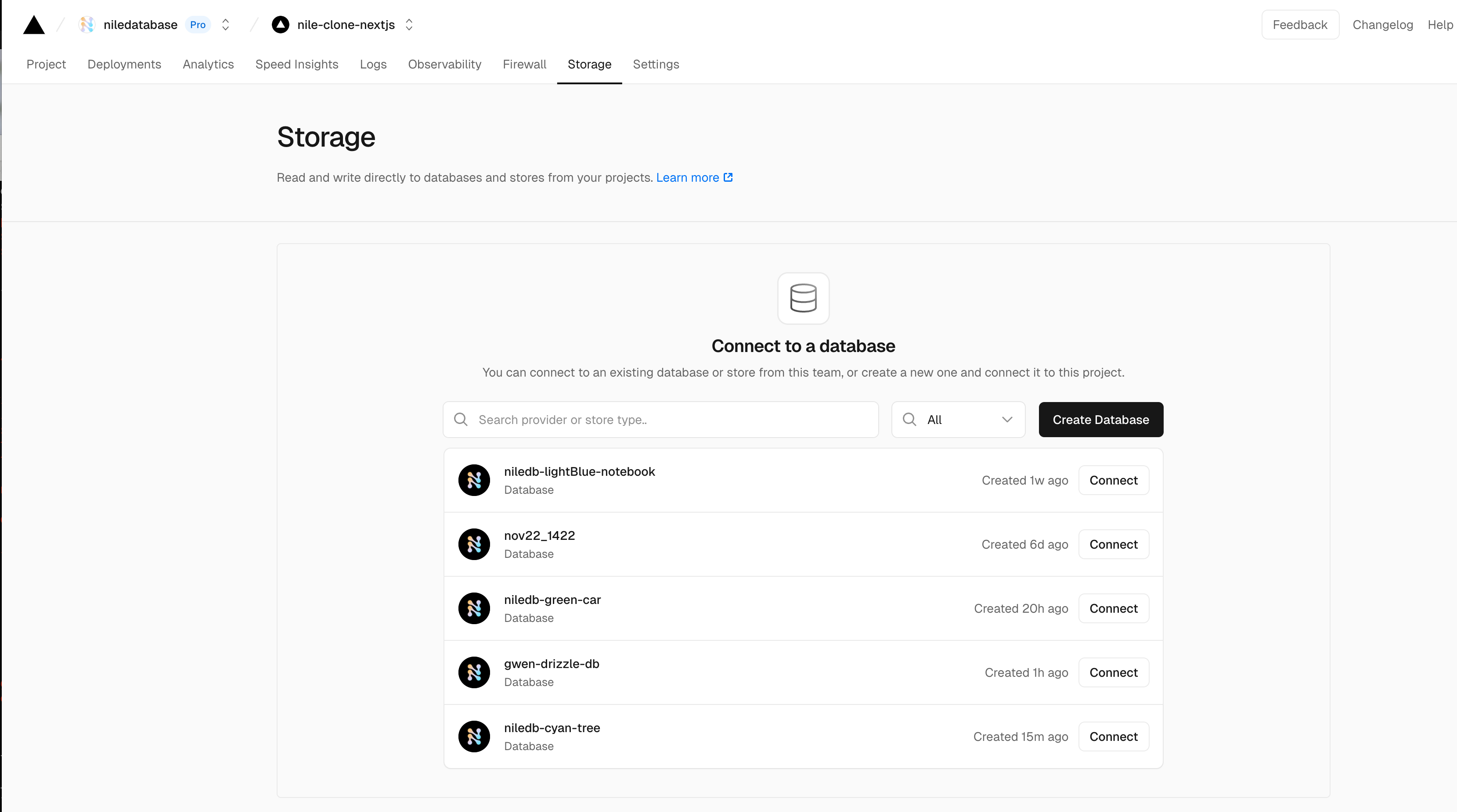 2. Once you connected a database to the project, the project's environment variables will populate with the database connection details.
3. Re-deploy the project for the new configuration to take effect.
You've now deployed a smart todo list app, written in Next.js, that uses Nile as the database and Vercel as the serverless compute platform.
### Create a database from the CLI
So far, you've explored two methods for creating Nile databases from Vercel: via the Project Storage tab and the Team Storage tab.
If you prefer using the command line, you can create a Nile database with the following command:
```bash theme={null}
vc i nile
```
Follow the prompts to select a region and tier. Once the database is created, use the command:
```bash theme={null}
vc env pull .env.local
```
This pulls the environment variables, including the database connection details, directly into your local environment.
2. Once you connected a database to the project, the project's environment variables will populate with the database connection details.
3. Re-deploy the project for the new configuration to take effect.
You've now deployed a smart todo list app, written in Next.js, that uses Nile as the database and Vercel as the serverless compute platform.
### Create a database from the CLI
So far, you've explored two methods for creating Nile databases from Vercel: via the Project Storage tab and the Team Storage tab.
If you prefer using the command line, you can create a Nile database with the following command:
```bash theme={null}
vc i nile
```
Follow the prompts to select a region and tier. Once the database is created, use the command:
```bash theme={null}
vc env pull .env.local
```
This pulls the environment variables, including the database connection details, directly into your local environment.