> ## Documentation Index
> Fetch the complete documentation index at: https://thenile.dev/docs/llms.txt
> Use this file to discover all available pages before exploring further.
# Netlify
Netlify is a platform for delivering modern web applications. It supports a wide range of frameworks and provides a comprehensive set of tools for building, deploying,
and managing web apps.
## Using Netlify and Nile together
Netlify supports deployment of various web frameworks and of serverless functions.
Nile's serverless database is a great fit for frameworks like NextJS and for Netlify serverless functions. Together they can be used to build B2B applications that are entirely serverless.
With Nile's tenant virtualization, you can store private data and embeddings for each of your customers in a secure and scalable manner.
In this example, we'll show you how we deploy a NextJS application to Netlify that uses Nile as a database.
### Setting Up Nile
Start by signing up for [Nile](https://console.thenile.dev/). Once you've signed up for Nile, you'll be promoted to create your first database. Go ahead and do so.
You'll be redirected to the "Query Editor" pageof your new database. This is a good time to create the table we'll be using in this example:
```sql theme={null}
CREATE TABLE todos (
id uuid DEFAULT (gen_random_uuid()),
tenant_id uuid,
title varchar(256),
estimate varchar(256),
embedding vector(768), -- must match the embedding model dimension
complete boolean);
```
Once you've created the table, you'll see it on the left-hand side of the screen. You'll also see the `tenants` table that is built-in to Nile.
**Note:** You can also start by setting up a new Netlify project and enabling the Nile integration from there. If you choose this route, make sure you still create the `todos` table.
### Setting Up Netlify
If you don't already have a Netlify account, go ahead and create one [here](https://www.netlify.com/). Pretty simple.
In your Netlify dashboard, navigate to "Extensions", choose "Nile" and click on the Tile.
You'll see a page that looks like this:
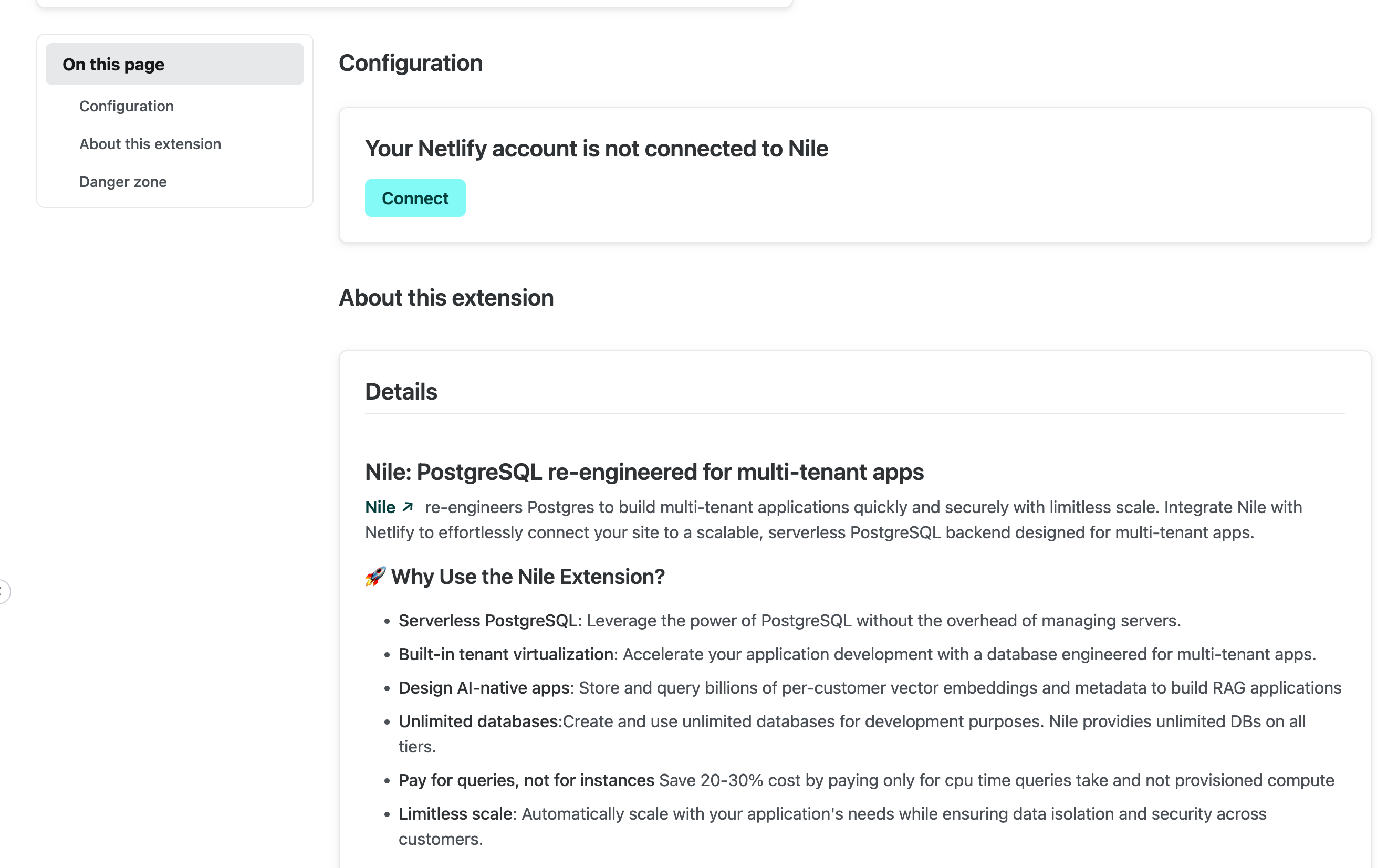 Click on the "Connect" button. You'll be redirected to Nile, where you can log in and authorize Netlify to create databases and database credentials on your behalf.
Once this is done, you'll be redirected back to Netlify. Time to create your project!
### Quickstart
You'll want to start by forking [Nile's github repo](https://github.com/niledatabase/niledatabase). You can do this by clicking the "Fork" button in the top right corner of the screen.
Now that you have your own fork, you have the option to import it to Netlify and configure the deployment using the UI or the CLI. Let's do it via the UI.
In Netlfiy dashboard, navigate to "Sites", click on "Add new site", choose "Import existing project" and pick "github". Authorize Netlify access to your GitHub account and select your fork.
Back on Netlfiy, you'll be asked to choose a name for your project. We chose `nile-netlify-todo`, but you can choose anything you like.
When choosing "Site to Deploy", make sure you choose the "main" branch and the "todo-nextjs" site.
This project needs a few environment variables to be set (in addition to the Nile database connection variables that you'll get automatically from the extension). You can set them here:
```bash theme={null}
# the URL of this example + where the api routes are located
NEXT_PUBLIC_APP_URL=https://nile-netlify-todo.netlify.app/api
# For automatic time estimates of todos - replace with your own
AI_API_KEY=xHOdh...
AI_BASE_URL=https://api.fireworks.ai/inference/v1
AI_MODEL=accounts/fireworks/models/llama-v3p1-405b-instruct
```
Use your own Netlify project name in the `NEXT_PUBLIC_APP_URL` variable.
And use whatever OpenAI-compatible inference API you like in the `AI_API_KEY`, `AI_BASE_URL` and `AI_MODEL` variables.
Once you set this, click on "Deploy site".
In the Site screen, click on "Site configuration". Scroll down to "Nile" (or select it on the left hand menu), and pick the database you created earlier.
Click on the "Connect" button. You'll be redirected to Nile, where you can log in and authorize Netlify to create databases and database credentials on your behalf.
Once this is done, you'll be redirected back to Netlify. Time to create your project!
### Quickstart
You'll want to start by forking [Nile's github repo](https://github.com/niledatabase/niledatabase). You can do this by clicking the "Fork" button in the top right corner of the screen.
Now that you have your own fork, you have the option to import it to Netlify and configure the deployment using the UI or the CLI. Let's do it via the UI.
In Netlfiy dashboard, navigate to "Sites", click on "Add new site", choose "Import existing project" and pick "github". Authorize Netlify access to your GitHub account and select your fork.
Back on Netlfiy, you'll be asked to choose a name for your project. We chose `nile-netlify-todo`, but you can choose anything you like.
When choosing "Site to Deploy", make sure you choose the "main" branch and the "todo-nextjs" site.
This project needs a few environment variables to be set (in addition to the Nile database connection variables that you'll get automatically from the extension). You can set them here:
```bash theme={null}
# the URL of this example + where the api routes are located
NEXT_PUBLIC_APP_URL=https://nile-netlify-todo.netlify.app/api
# For automatic time estimates of todos - replace with your own
AI_API_KEY=xHOdh...
AI_BASE_URL=https://api.fireworks.ai/inference/v1
AI_MODEL=accounts/fireworks/models/llama-v3p1-405b-instruct
```
Use your own Netlify project name in the `NEXT_PUBLIC_APP_URL` variable.
And use whatever OpenAI-compatible inference API you like in the `AI_API_KEY`, `AI_BASE_URL` and `AI_MODEL` variables.
Once you set this, click on "Deploy site".
In the Site screen, click on "Site configuration". Scroll down to "Nile" (or select it on the left hand menu), and pick the database you created earlier.
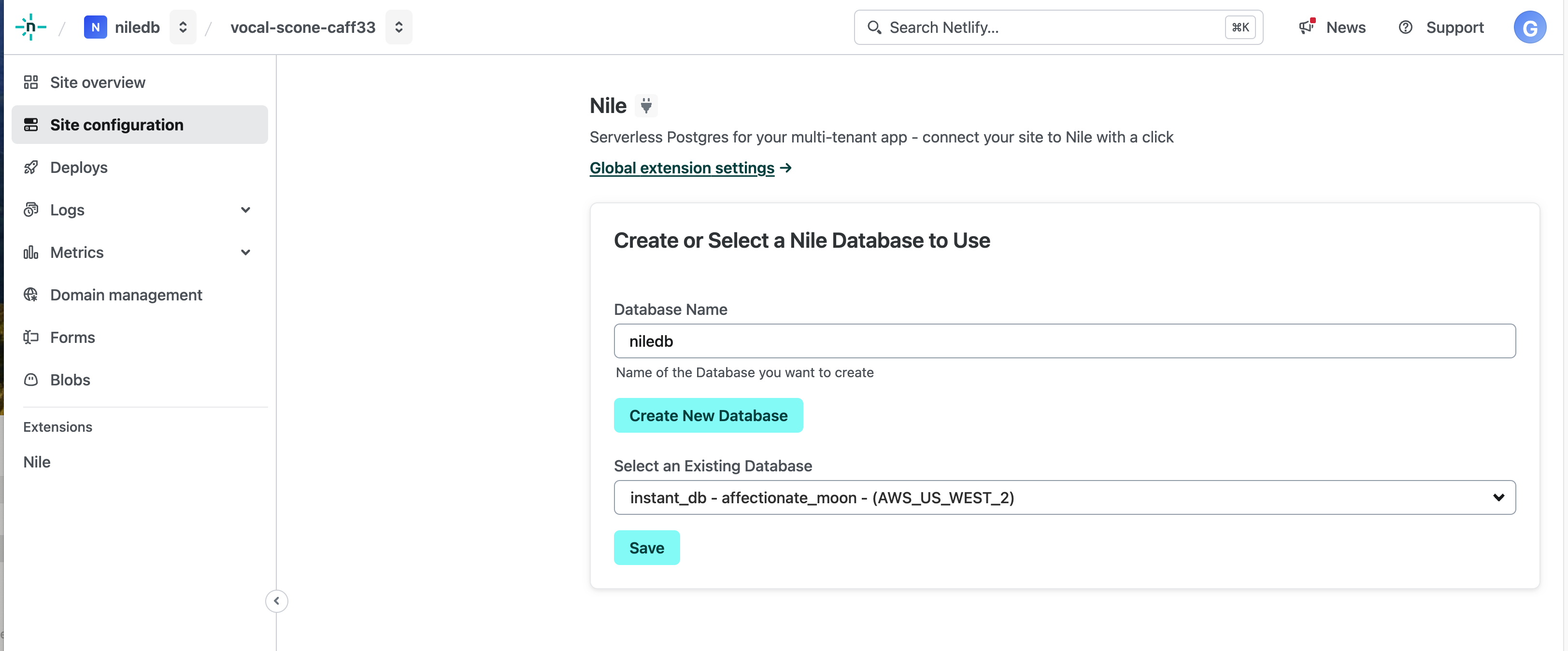 Click "Save". This will automatically populate Nile's connection information in your environment variables. Then check on the "Deploys" tab to see the build in progress.
You will need to re-build in order to pick up any new environment variables you set.
Once the the build is complete, you'll see "Open Production Deploy" button on top. Click on it to open your app.
### Congratulations!
You've now deployed a serverless backend that uses Nile as the database and Netlify as the serverless compute platform.
Feel free to explore the app (or you can try [the live demo version](https://nile-netlify-todo.netlify.app/) of it). You can sign up as a new user, create a new tenant, create todos for that tenant, and even use the embedding search functionality.
You will see all these users, tenants and todos stored in your Nile database.
You can explore them in [Nile Console](https://console.thenile.dev/) or via your favorite Postgres client.
Click "Save". This will automatically populate Nile's connection information in your environment variables. Then check on the "Deploys" tab to see the build in progress.
You will need to re-build in order to pick up any new environment variables you set.
Once the the build is complete, you'll see "Open Production Deploy" button on top. Click on it to open your app.
### Congratulations!
You've now deployed a serverless backend that uses Nile as the database and Netlify as the serverless compute platform.
Feel free to explore the app (or you can try [the live demo version](https://nile-netlify-todo.netlify.app/) of it). You can sign up as a new user, create a new tenant, create todos for that tenant, and even use the embedding search functionality.
You will see all these users, tenants and todos stored in your Nile database.
You can explore them in [Nile Console](https://console.thenile.dev/) or via your favorite Postgres client.