> ## Documentation Index
> Fetch the complete documentation index at: https://thenile.dev/docs/llms.txt
> Use this file to discover all available pages before exploring further.
# Build AI-Native B2B application with Postgres, NodeJS and React
In this tutorial, you will learn to build a multi-tenant AI-native todo list application, using Nile with NodeJS, React and OpenAI's client.
We'll use Nile to provide us with virtual-tenant databases - isolating the tasks for each tenant, and we'll use the AI models to generate automated time estimates
for each task in the todo list. The estimates will be based on the task title, and estimates of similar tasks in the tenant's history.
This technique is known as [RAG architecture](https://www.thenile.dev/docs/ai-embeddings/rag).
1. Sign up for an invite to [Nile](https://thenile.dev) if you don't have one already
2. You should see a welcome message. Click on "Lets get started"
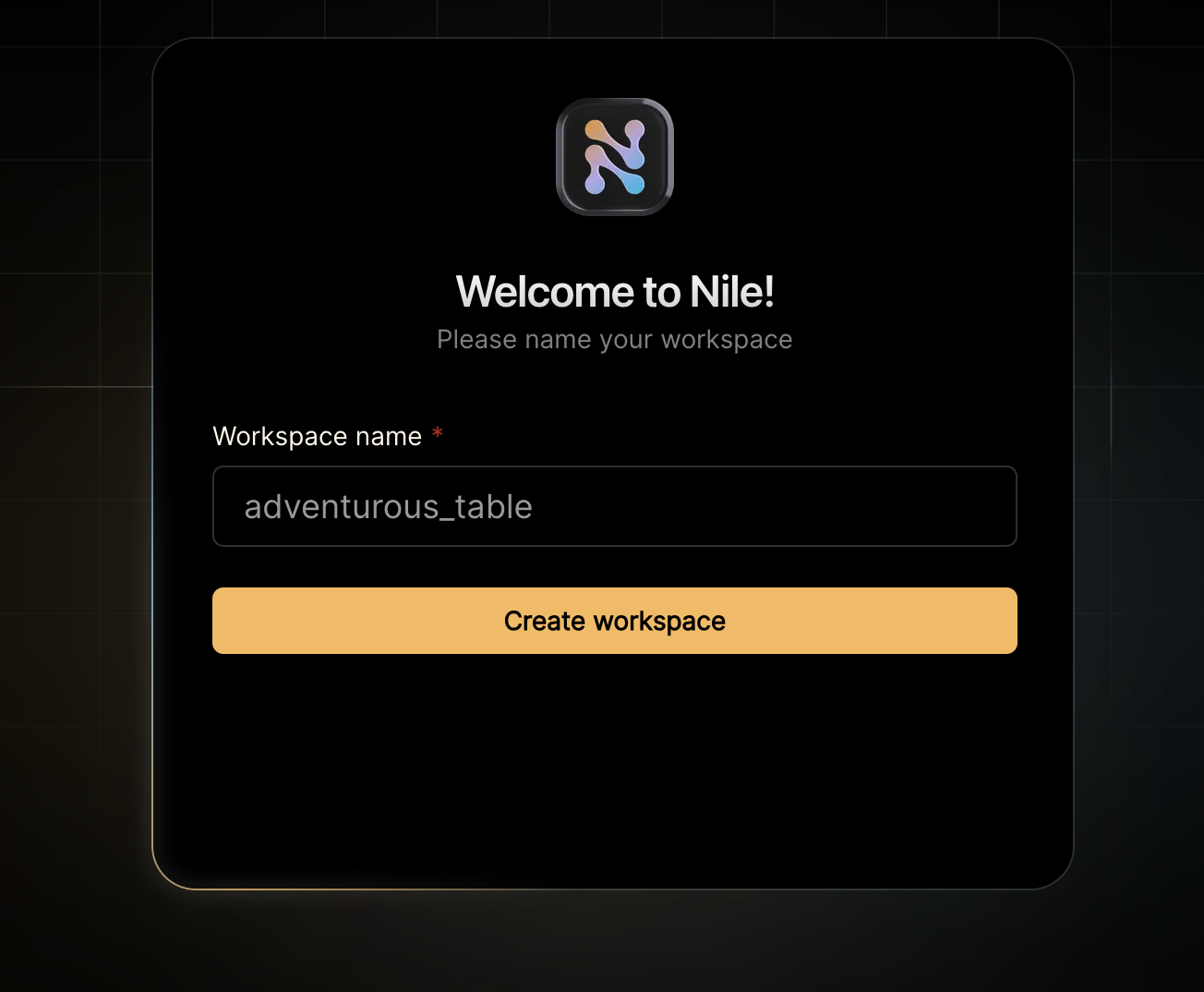
3. Give your workspace and database names, or you can accept the default auto-generated names. In order to complete this quickstart in a browser, make sure you select to "Use Token in Browser".
After you created a database, you will land in Nile's query editor.
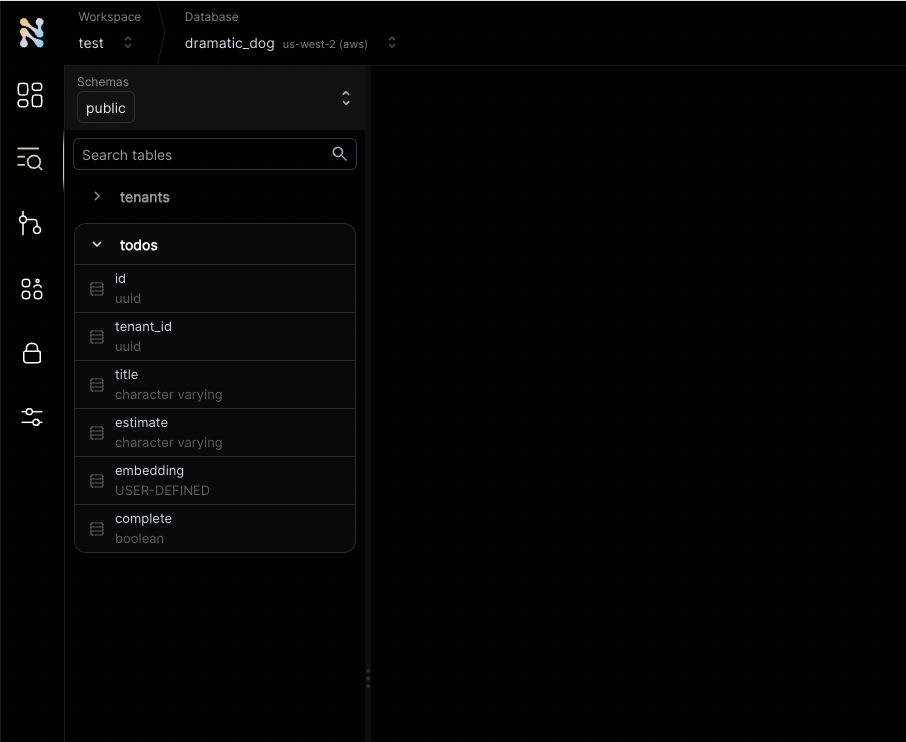
For our todo list application, we'll need tables to store tenants, users and todos. Tenants and users already exists in Nile, they are built-in tables. We'll just need to create a table for todos.
```sql theme={null}
create table todos (
id uuid DEFAULT (gen_random_uuid()),
tenant_id uuid,
title varchar(256),
estimate varchar(256),
embedding vector(768),
complete boolean);
```
You will see the new table in the panel on the left side of the screen, and you can expand it to view the columns.
The embedding column is a vector representation of the task. When the user adds new tasks, we will use these embeddings to find
semantically related tasks and use this as a basis of our AI-driven time estimates. This technique - looking up related data using embeddings and
using this data with text generation models is a key part of [RAG (Retrieval Augumented Generation)](https://www.thenile.dev/docs/ai-embeddings/rag).
See the `tenant_id` column? By specifying this column, You are making the table **tenant aware**. The rows in it will belong to specific tenants. If you leave it out, the table is considered shared, more on this later.
{" "}
In the left-hand menu, click on "Settings" and then select "Credentials".
Generate credentials and keep them somewhere safe. These give you access to
the database.
{" "}
This example uses AI chat and embedding models to generate automated time
estimates for each task in the todo list. In order to use this functionality,
you will need access to models from a vendor with OpenAI compatible APIs. Make
sure you have an API key, API base URL and the [names of the models you'll
want to use](https://www.thenile.dev/docs/ai-embeddings/embedding_models).
Enough GUI for now. Let's get to some code.
If you haven't cloned this repository yet, now will be an excellent time to do so.
```bash theme={null}
git clone https://github.com/niledatabase/niledatabase
cd niledatabase/examples/quickstart/node_react
```
Rename `.env.example` to `.env`
Update NILE\_USER and NILE\_PASSWORD with the credentials you picked up in the previous step. It should look something like this:
```bash theme={null}
# Private env vars that should never show up in the browser
# These are used by the server to connect to Nile database
NILEDB_USER=018ad484-0d52-7274-8639-057814be60c3
NILEDB_PASSWORD=0d11b8e5-fbbc-4639-be44-8ab72947ec5b
# URL of the frontend, for the post-signup redirect
FE_URL = "http://localhost:3006"
NILEDB_API_URL=https://eu-central-1.api.dev.thenile.dev/databases/018ec979-2412-7062-9cda-35ae6fea7837
# for AI estimates
AI_API_KEY=your_api_key_for_openai_compatible_service
AI_BASE_URL=https://api.fireworks.ai/inference/v1
AI_MODEL=accounts/fireworks/models/llama-v3p1-405b-instruct
EMBEDDING_MODEL=nomic-ai/nomic-embed-text-v1.5
```
Install dependencies
```bash theme={null}
npm install
```
Start both NodeJS api server and the React frontend
```bash theme={null}
npm start
```
Go to [http://localhost:3000](http://localhost:3000) in a browser to see the app.
You can try a few things in the app:
* Sign up as a new user
* Create a tenant
* Create a todo task and see its time estimate. If you create more tasks, the estimates for new tasks will use the embeddings of the existing tasks to generate the estimates.
Go back to the Nile query editor and see the data you created from the app.
```sql theme={null}
SELECT tenants.name, title, estimate, complete
FROM todos join tenants on tenants.id = todos.tenant_id;
```
You should see all the todos you created, and the tenants they belong to.
This example is a good starting point for building your own application with Nile.
You have learned basic Nile concepts and how to use them with NodeJS and React.
You can learn more about Nile's tenant virtualization features in the following tutorials:
* [Tenant management](/tenant-virtualization/tenant-management)
* [Tenant isolation](/tenant-virtualization/tenant-isolation)
You can explore Nile's JS SDK in the [SDK reference](/auth/sdk-reference/javascript/overview).
You can learn [More about AI in Nile](https://www.thenile.dev/docs/ai-embeddings), or try a more advanced example like:
* [Chat with PDFs](https://www.thenile.dev/docs/getting-started/examples/chat_with_pdf)
* [Code Assistant](https://www.thenile.dev/docs/getting-started/examples/code_assistant)
## How does it work?
The interesting part of this example is the NodeJS server. Lets take a look at [`/examples/quickstart/node_react/src/be/app.ts`](https://github.com/niledatabase/niledatabase/blob/main/examples/quickstart/node_react/src/be/app.ts).
### Using AI models to generate estimates
This example uses AI chat and embedding models to generate automated time estimates for each task in the todo list. We handle the time estimates in
the route handler for `app.post("/api/tenants/:tenantId/todos"`. This handler executes when users add new tasks.
This is what the handler code looks like:
```javascript theme={null}
const similarTasks = await findSimilarTasks(nile, title);
const estimate = await aiEstimate(title, similarTasks);
const embedding = await embedTask(title, EmbeddingTasks.SEARCH_DOCUMENT);
const newTodo = await nile.query(
`INSERT INTO todos (tenant_id, title, complete, estimate, embedding)
VALUES ($1, $2, $3, $4, $5)
RETURNING *;`,
[
nile.tenantId, // setting from context
title,
complete || false,
estimate,
embeddingToSQL(embedding),
],
);
```
As you can see, we look up similar tasks and then use the AI model to generate the estimate. We then store the task, with the estimate and the task embedding in the database.
The stored embedding will be used to find similar tasks in the future. The methods `findSimilarTasks`, `aiEstimate` and `embedTask` are all defined in `AiUtils.ts`.
They are wrappers around standard AI model calls and database queries, and they handle the specifics of the AI model we are using.
This will make it easy to switch models in the future.
Getting similar tasks is done by querying the database for tasks with similar embeddings.
```javascript theme={null}
const embedding = await embedTask(title, EmbeddingTasks.SEARCH_QUERY);
// get similar tasks, no need to filter by tenant because we are already in the tenant context
const similarTasks = await nile.db.query(
`SELECT title, estimate FROM todos WHERE embedding <-> $1 < 1 ORDER BY embedding <-> $1 LIMIT 3;`,
[embeddingToSQL(embedding)],
);
```
We started by generating an embedding with `SEARCH_QUERY` task type. This is because we are looking for similar tasks to the new task. We use an embedding model
from the `nomic` family, which is trained to perform specific types of embedding tasks. Telling it that we are generating the embedding for a lookup vs
generating an embedding that we will store with the document (as we'll do in a bit), should help the model produce more relevant results.
As you can see, we filter out results where the cosine distance is higher than 1.
The lower the cosine distance is, the more similar the tasks are (0 indicate that they are identical).
A cosine distance of 1 means that the vectors are essentially unrelated, and when cosine distance is closer to 2, it indicates that the vectors are semantically opposites.
The `embedTask` function uses the embedding model to generate the embedding and is a very simple wrapper on the model:
```javascript theme={null}
let resp = await ai.embeddings.create({
model: EMBEDDING_MODEL,
input: adjust_input(title, task),
});
```
Now that we have the similar tasks, the handler calls `aiEstimate` to generate the time estimate.
This function also wraps a model, this time a conversation model rather than an embedding model. And it icludes the similar tasks in the promopt, so the model will
generate similar estimates:
```javascript theme={null}
const model =
process.env.AI_MODEL || 'accounts/fireworks/models/llama-v3p1-405b-instruct';
const aiEstimate = await ai.chat.completions.create({
messages: [
{
role: 'user',
content: `you are an amazing project manager. I need to ${title}. How long do you think this will take?
I have a few similar tasks with their estimates, please use them as reference: ${similarTasks}.
respond with just the estimate, keep the answer short.`,
},
],
max_tokens: 64, // limit the response to 64 tokens, to fit in our estimate field
model: model,
});
```
This estimate is then stored in the database along with the task and its vector embedding.
### Working with virtual tenant databases
The NodeJS server uses the [Nile JS client](https://github.com/niledatabase/nile-js) to connect to Nile.
When the Nile client is initialized, it uses the credentials you provided in the `.env` file to connect with the API:
```js theme={null}
const nile = Nile();
```
The application uses Express middleware to capture the tenant identity for the current request and set Nile context:
```js theme={null}
app.param('tenantId', (req, res, next, tenantId) => {
nile.setContext({ tenantId });
next();
});
```
We use Nile SDK to both execute SQL and make API calls to Nile. For example, to create as new tenant:
```js theme={null}
app.post("/api/tenants", async (req, res) => {
const { name } = req.body;
if (!name) {
res.status(400).json({
message: "No tenant name provided",
});
}
try {
const createTenantResponse = await nile.tenants.create({
name: name,
});
const tenant = await createTenantResponse.json();
res.json(tenant);
} catch (error: any) {
console.log("error creating tenant: " + error.message);
res.status(500).json({
message: "Internal Server Error",
});
}
});
```
 3. Give your workspace and database names, or you can accept the default auto-generated names. In order to complete this quickstart in a browser, make sure you select to "Use Token in Browser".